
add_moderator How to Add New Role
Adding a new role to the Kuber template is a straightforward process. By following these steps, you can create custom user types (like Recruiter, Project Manager, etc.) with their own dashboards, sidebars, and access permissions.
Step 1: Generate Module & Components
First, use the Angular CLI to generate the module and the main component for your new role. For example, if you are adding a Test role:
ng g m Test
ng g c Test/TestComponentStep 2: Define the New Role
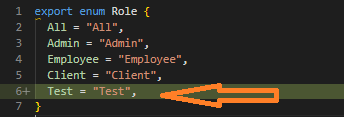
Open role.ts and add the new role to the Enum
definition.
Step 3: Add User Data
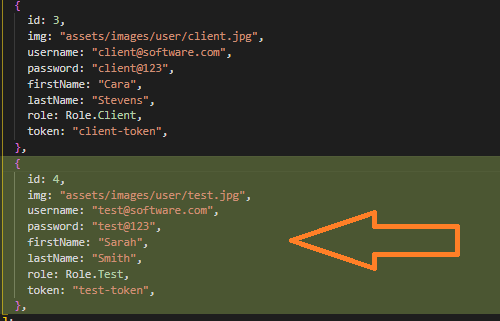
In auth.service.ts, add a test user for the new role
to the users array (or configure your API to return this role).
Step 4: Sidebar Items
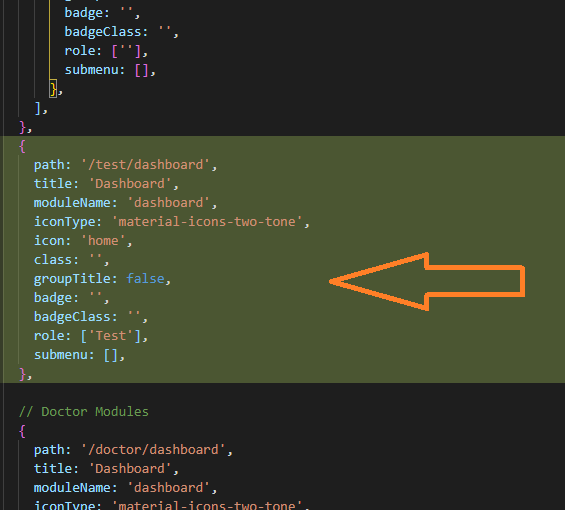
Add the module entry in sidebar-item.ts (located in
layout/sidebar) to define how it appears in the menu.
Step 5: Sidebar Logic
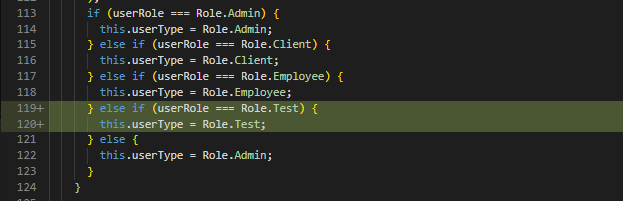
Update sidebar.component.ts to handle any
role-specific filtering or display logic for the menu.

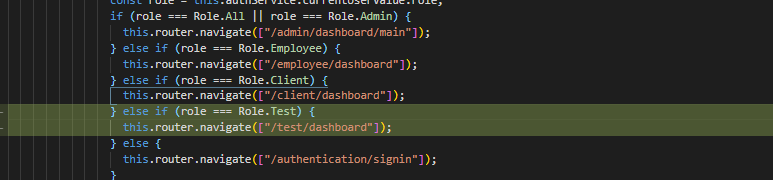
Step 6: Login Redirection
Finally, mention the redirect URL in signin.component.ts to ensure users are sent to
the correct dashboard after a successful login.
Final Touches
-
check_circle
Add a new profile image (e.g.,
test.png) in the assets folder. - check_circle Configure routing for the new module in your project's main routing file.
That's it!!!
You have successfully integrated a new user role into the Kuber template.